
Creating Storage Vaults
A Storage Vault is where a user's backup data is stored. Most users only need the cloud Storage Vault they already have. Create another vault when:
- You want a local backup copy on an external drive attached to the client's device. A local vault next to the cloud vault gives the client a fast way to restore.
- A user has many devices (four or more) backing up into one vault and you see
Cannot proceed - Locked by deviceerrors. - You need to keep data apart between devices or departments on the same user. Each vault deduplicates on its own.
A new vault is set up automatically the first time a backup runs into it.
Create a vault for an external drive
- In the Web Portal, go to Users and open the user.
- Open the Storage Vaults tab.
- Click Add new vault... and choose Custom....
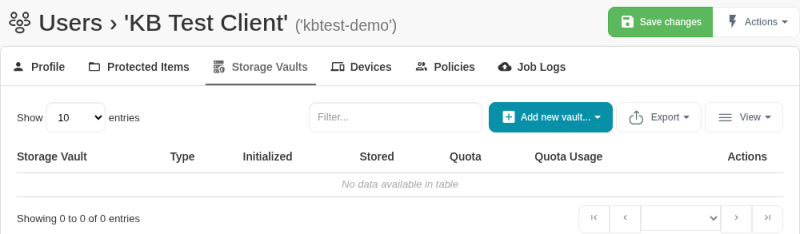
- In the Storage Vault window, open the Storage page:
- Change the type at the top to Local Path.
- In Path:, enter the path to the attached drive, for example
E:\.

- Optionally, go back to the General page and give the vault a name.
- Click Save, then click Save changes at the top right of the user page.

Create an additional cloud vault
- In the Web Portal, go to Users, open the user and open the Storage Vaults tab.
- Click Add new vault....
- Click the name of your cloud Storage Vault option, not Custom.... This creates a new vault with the cloud storage settings already filled in.
- Rename the vault or set a quota if you want to, then click Save and Save changes.
Notes
- Deduplication happens within each vault. Splitting data across vaults uses more storage but keeps data apart and uses less RAM on the client. See User Configuration Within the Magnus Box Web Portal.
- Retention is set per vault. See How to edit retention policies for Storage Vaults.
- To cap how much a vault can hold, see Set storage and usage quotas.
Need help? Email support@magnusbox.com.