
How to view older snapshots
Every backup of a Protected Item is kept as a snapshot, labelled with its date and time. How far back you can go depends on the Storage Vault's retention policy. You see the snapshots when you start a restore.
Steps: from the Web Portal
- In the Web Portal, go to Management Console > Users, click the user and open the Devices tab. The device must show as Online.
- Click Actions... on the device's row, then click Restore... on the Device tab.
- Pick the Storage Vault that holds the backup and click Next >.
- Expand the device and then the Protected Item. Each backup is listed as a snapshot with its date and time, for example "Snapshot 2026-09-26 00:04:00".
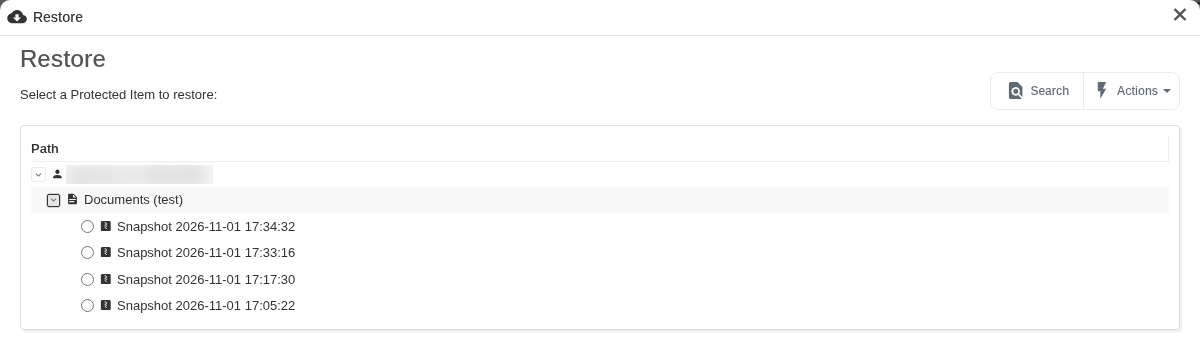
- Pick the snapshot you want. To find a file when you don't know which snapshot it's in, use Search.
Steps: from the Magnus Box Application
- Open the backup app on the client's device and click Restore.
- Pick the Storage Vault and click Next.
- Find the Protected Item. The Backup Date column shows Latest by default. Click the arrow next to the Protected Item to expand it and see the older snapshots by date and time.
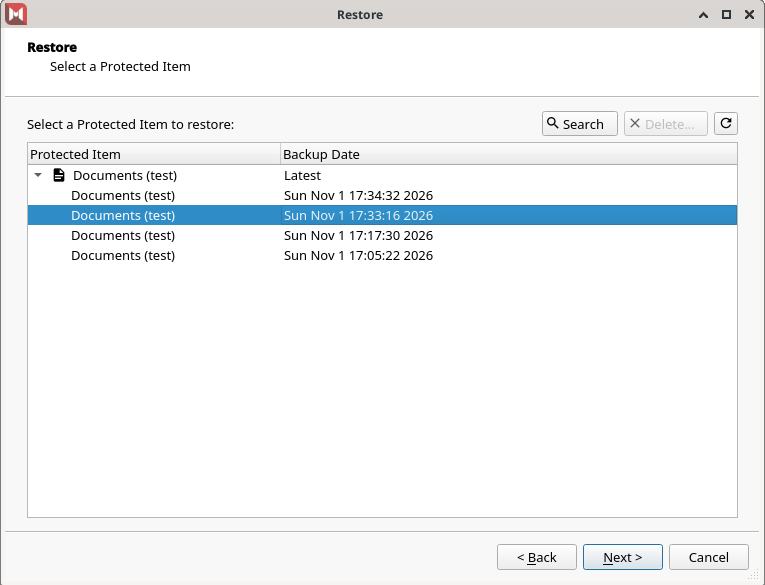
To restore from the snapshot you picked, carry on through the wizard. See Restore files and folders. To change how many snapshots are kept, see Retention policies and retention passes.