
Retention policies and retention passes
In short
A retention policy decides which backups (snapshots) a Storage Vault keeps. A retention pass deletes the snapshots the policy no longer covers and frees their space. By default, a vault keeps every backup forever. You set and change retention yourself in the Web Portal, on a user policy, a Storage Vault or a Protected Item. Snapshots that match no rule are deleted at the next pass, so check your rules carefully.
How it works
Where retention is set
Policy-wide, through a user policy. A policy sets retention for every user it's applied to, and can enforce it on all their vaults.
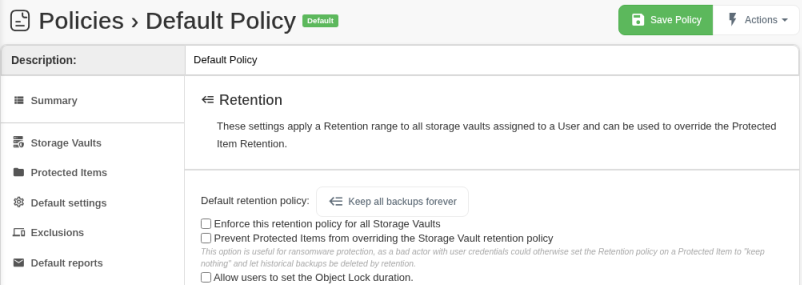
- In the Web Portal, go to Management Console > User policies and open the policy, for example Default Policy.
-
Select the Retention tab.
-
Next to Default retention policy:, click the current setting (Keep all backups forever by default).
-
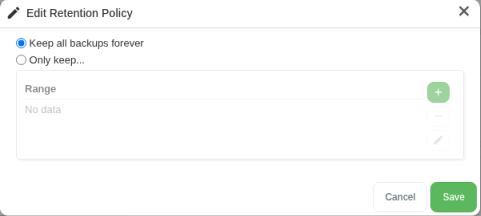
Choose Only keep..., add your rules to the Range table, and click Save. To keep everything again, choose Keep all backups forever.
-
Tick the options you need:
- Enforce this retention policy for all Storage Vaults: applies the policy's retention to every vault of every user on the policy, overriding the vaults' own retention. Use it when users may edit their Protected Items but shouldn't change retention.
- Prevent Protected Items from overriding the Storage Vault retention policy: Protected Items can't use their own rules. This helps against ransomware: someone with a user's login could otherwise set a Protected Item to keep nothing and let old backups be deleted.
- Click Save Policy at the top right.
See Policy Settings for the other policy options.
Per Storage Vault or per Protected Item:
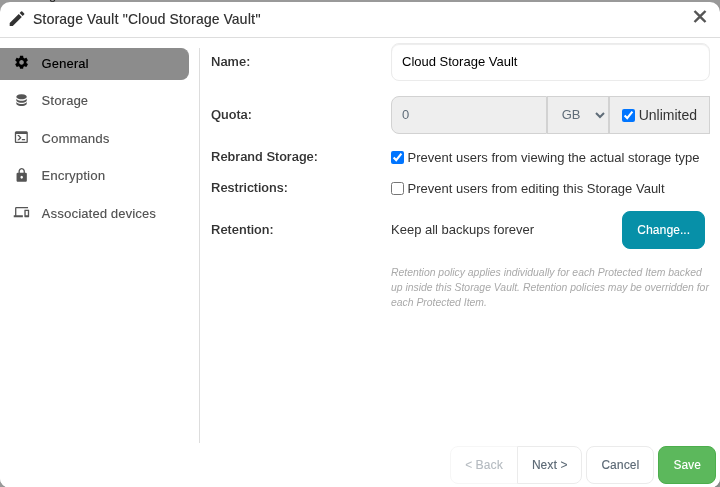
- On the Storage Vault (the default for the whole vault): go to Management Console > Users > [user] > Storage Vaults and open the vault. On its General tab, next to Retention: (Keep all backups forever by default, or for example "Keep (3 rules)"), click Change....
-
On a Protected Item, per Storage Vault: go to Management Console > Users > [user] > Protected Items, open the Protected Item and select its Retention tab. Each Storage Vault is listed with its Policy: "(default)" means the vault's rules apply, and "keep (X rules)" means the Protected Item has its own rules.
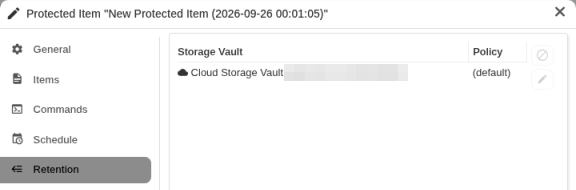
A Protected Item's own rules win over the vault's rules, unless the policy prevents it. The vault's rules take over again if the Protected Item is deleted, loses its own rules, or belongs to a revoked device.
Retention rules
A snapshot is kept if any rule in the policy matches it. The rules are:
| Rule | What it keeps |
|---|---|
| Last [...] backups | The most recent X backups |
| Last [...] backups, at most one per day / week / month / year | The most recent backup from each day (or week, month, year), until X backups are kept |
| All backups in the last [...] | Every backup from the last X days, weeks and/or months |
| All backups newer than a specific date | Every backup taken after the date you pick |
| One backup each day, for the last [...] days | The first backup of each day, for X days |
| One backup each week, for the last [...] weeks | The first backup on the weekday you pick, for X weeks |
| One backup each month, for the last [...] months | The first backup on the calendar date you pick, for X months |
| One backup each year, for the last [...] years | The first backup in the month you pick, for X years |
Yearly rules (and yearly schedules) need version 25.5 or later.
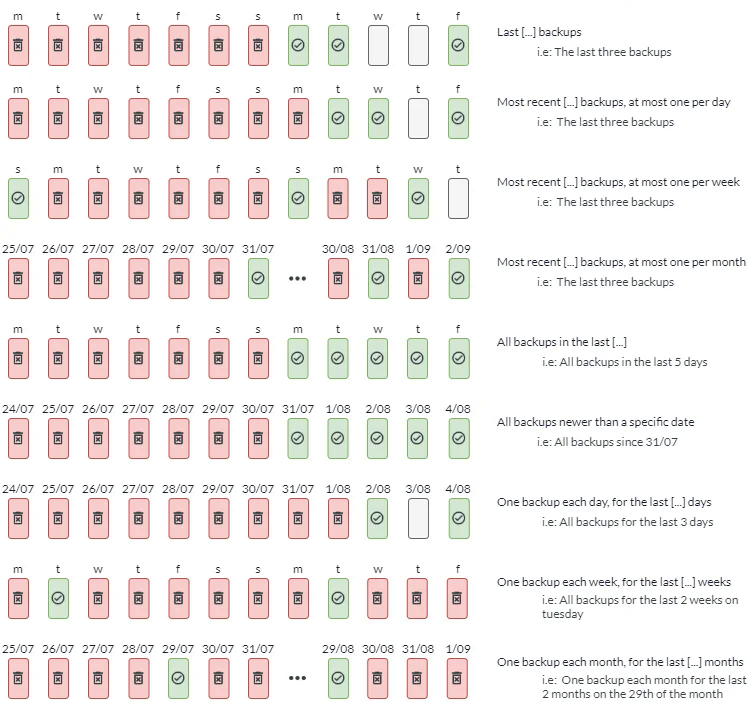
Each row of the chart is one rule applied to the same run of daily backups: a green tick is kept, a red bin is deleted, and an empty box means no backup ran that day.
A typical long-term policy
A common "grandfather-father-son" setup:
- On the Protected Item: keep the last 14 backups (the "sons", for day-to-day restores).
- On the Protected Item: keep the last 13 backups, at most one per week (the "fathers", about three months of weeklies).
- On the Protected Item: keep the last 12 backups, at most one per month (the "grandfathers", a year of monthlies).
- Optionally, add a yearly rule for clients who need to keep data for several years.
- On the Storage Vault: set the default to keep all backups from the last 30 days.
If the device is later revoked, its Protected Item and rules are deleted, and the vault's 30-day rule cleans up the old versions.
Retention passes
A pass removes the snapshots your rules don't cover, then deletes stored data that no remaining snapshot uses. That second step frees the space.
Automatic passes. A cleanup pass runs automatically after backups, controlled by Apply retention policy after backup (in the backup job or schedule settings; also under Advanced in the Web Portal Run Backup dialog). The default, Automatic, is right for almost every device. Choose Run less often only for laptops and low-RAM machines.
Manual passes. To run a pass on demand:
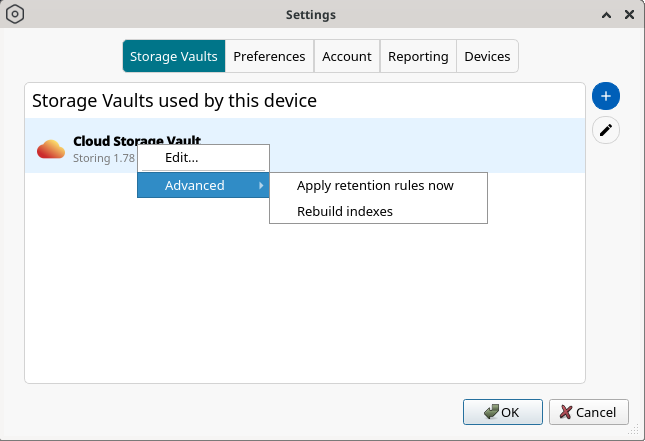
- In the backup app on the client's device, right-click the Storage Vault and choose Advanced > Apply retention rules now.
-
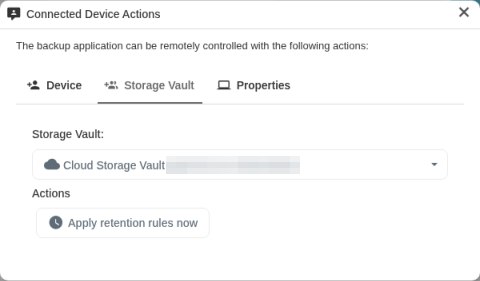
In the Web Portal, find the user's online device on Management Console > Devices and click Actions (or Actions... on the user's Devices tab). In the Connected Device Actions dialog, select the Storage Vault tab, pick the vault under Storage Vault: and click Apply retention rules now.
Deleting a single snapshot. In the backup app's restore wizard, right-click a snapshot and choose Delete this snapshot. The vault is cleaned up straight away.
What this means for you
Warning: Retention deletes data permanently. Before you save new rules, check that every version the client needs is covered by at least one rule. Snapshots that match no rule are deleted at the next retention pass and can't be restored.
- Match your rules to your schedule. A rule that keeps Sunday backups keeps nothing if backups only run on Mondays. Monthly and yearly rules pointing at a date or month with no backups keep nothing too.
- "Keep forever" has a cost. The vault keeps growing, passes take longer, and backups and passes need RAM in proportion to vault size, until a smaller device may not cope. See Out of memory.
- Revoking a device changes which rules apply. Its data falls under the vault's rules. If the vault keeps everything forever, so does that data.
- Shortening retention frees space only after a pass. Run one manually if you need the space now.
- Vault content analysis (what's using space) is only as fresh as the last retention pass.
- New vaults on busy devices: since version 26.7.2, the first retention pass on a new Storage Vault runs alongside backups instead of being blocked by them.
- Lock errors: if a pass keeps failing because another task is using the Storage Vault, see Storage Vault Locks.