
Set storage and usage quotas
What it's for
Quotas put a ceiling on what a client can use, so one account can't quietly run up your storage bill or register more machines than you agreed to. You set and change them yourself in the Web Portal, per user, whenever you need to. You don't need to contact us first. Your clients can't change them. You can limit:
| Quota | What it limits | Where you set it | What happens at the limit |
|---|---|---|---|
| Storage Vault | Total data stored in one Storage Vault | The vault's General tab, Quota: | The backup job stops with an error once it reaches the limit |
| All protected items | Total size of all the user's Protected Items combined | Profile tab, Quota section | The backup is refused (checked before it starts, where possible) |
| Number of devices | How many devices can be registered to the user | Profile tab | Registering another device fails with an error |
| Office 365 protected accounts | Number of Microsoft 365 accounts protected | Profile tab | The backup stops |
| Hyper-V Guests, VMware Guests | Number of VMs protected | Profile tab | The backup fails with a "Quota Exceeded" error |
| Proxmox Guest VMs, Proxmox Guest LXCs | Number of Proxmox VMs and containers protected (set separately) | Profile tab | The backup fails with a "Quota Exceeded" error |
Note: Partners can white-label the Web Portal, so page titles and product names may show your own brand.
Before you start
- Sign in to the Web Portal with your admin account.
- Know which user (client account) you're limiting, and what limits you've agreed with the client. A quota that's too tight will stop backups.
-
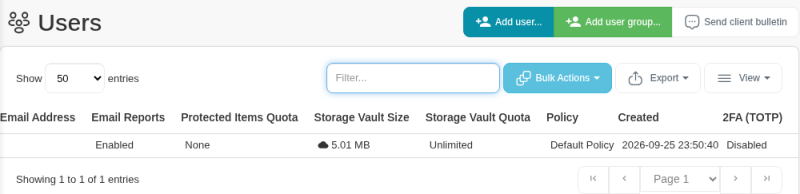
Check current usage first, so you don't set a limit below what's already stored. On Management Console > Users, the Protected Items Quota, Storage Vault Size and Storage Vault Quota columns show each user's limits and usage at a glance. A new user has no limits: Protected Items Quota shows None and Storage Vault Quota shows Unlimited. For details, open the user's Storage Vaults and Protected Items tabs.
Steps
Set a Storage Vault quota
-
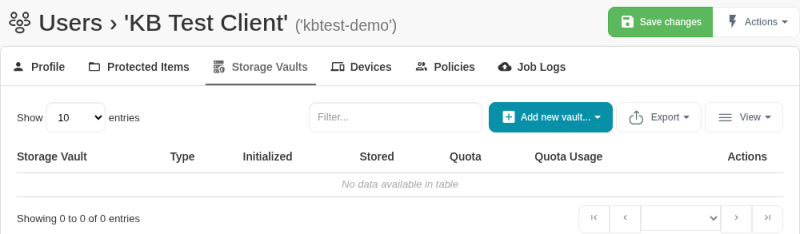
Go to Management Console > Users > [user] > Storage Vaults. The list shows each vault's Type, whether it's Initialized, how much is Stored, its Quota and its Quota Usage. Open the vault you want to limit, for example the cloud storage vault in your portal.
-
On the General tab, find Quota:.
- Untick Unlimited, then enter a number and choose the unit.
- Click Save in the vault dialog, then click Save changes at the top right of the user page.
You can also set the quota when you create a vault. See Create an additional cloud vault (Creating Storage Vaults).
Set user-level quotas
- Go to Management Console > Users > [user] > Profile. (The user page has the tabs Profile, Protected Items, Storage Vaults, Devices, Policies and Job Logs.)
- Scroll down past User Details to the Quota section.
-
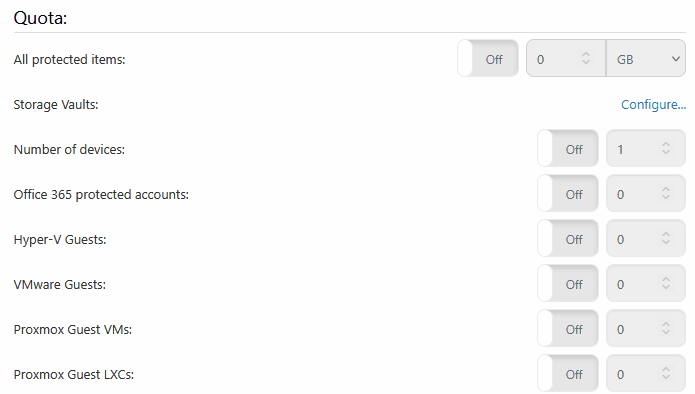
For each limit you want, switch its toggle from Off to On and enter the limit. For All protected items, also choose the unit.
-
Click Save changes at the top right.
The Storage Vaults row in the same section has a Configure... link for the vault quotas.
Verify it worked
- Reopen the user's Profile tab (or the vault's General tab) and check the values stuck. The user's row on Management Console > Users also shows the limits in the Protected Items Quota and Storage Vault Quota columns, and the vault's row on the user's Storage Vaults tab shows Quota and Quota Usage.
- The next backup that goes over a limit fails with a quota error in the job log. If you want to be sure a new quota won't block normal backups, run a backup and check it completes.
Troubleshooting
- A backup failed because the Storage Vault quota was reached. The data already uploaded stays in the vault, and future backups will probably fail straight away. Nothing fixes itself, so pick one:
- Raise the quota and run the backup again. It reuses the data already uploaded, so it catches up quickly.
- Run Apply retention rules now for that vault (in the Web Portal: the device's Actions button > Storage Vault tab) to clear out data that's no longer needed, then back up again. See Run a retention pass manually.
- "Quota Exceeded" on a VM or Microsoft 365 backup: the user is protecting more guests or accounts than the quota allows. Raise the quota, or remove some VMs or accounts from the Protected Item.
- A new device can't register: the user has hit the Number of devices limit. Raise it, or revoke a device the client no longer uses. See Revoke a device.
- The quota doesn't seem to apply: version 26.7 fixed an issue with how user quotas were enforced. If a quota still isn't being applied, email support@magnusbox.com with the user name.
- Warning "Couldn't determine the size of the Storage Vault": this is a warning, not a failure, and the backup still runs. The app checks the vault's size around each backup for health checks and quota enforcement. Many destinations (local folders, SFTP and similar) can only be measured by adding up every file, and that can time out. If it keeps happening, quota enforcement and the usage you bill your client may be off for that vault. Email support@magnusbox.com if you see it on every job.
- Need a quota shared across several vaults, or set by default on new vaults? Email support@magnusbox.com and we'll look at it with you.