
Backup schedules explained
What it's for
A schedule tells a Protected Item when to back up and to which Storage Vault. Use this article to add or edit a schedule for a client, choose the right schedule type, and understand the options that decide what happens when a device is off, asleep or busy at the scheduled time.
Note: Partners can white-label the backup app and the Web Portal, so window titles and product names may show your own brand instead of the names used here.
Before you start
- You need your admin account for the Magnus Box Web Portal, and the client's Protected Item must already exist. See How to create a Protected Item or Back up files and folders.
- Schedules run on the device. The device must be switched on and the backup app running at the scheduled time, otherwise the job is recorded as Missed.
- If the client is on a policy with default schedules, new Protected Items get those schedules automatically. See Set default Protected Items and schedules with policies.
Steps: add or edit a schedule
- In the Web Portal, go to Management Console > Users and click the client's user, for example
contoso-dental. - Select the Protected Items tab and click the name of the Protected Item. The Protected Item editor opens.
- Select Schedule on the left. Existing schedules are listed with their Name and Storage Vault.
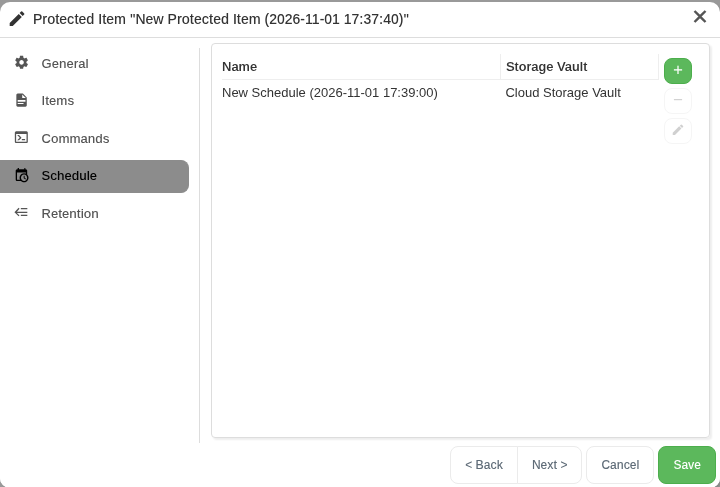
- To add a schedule, click the green + (Add schedule) button. To change one, select it and click the pencil (Edit schedule) button. The schedule dialog opens.
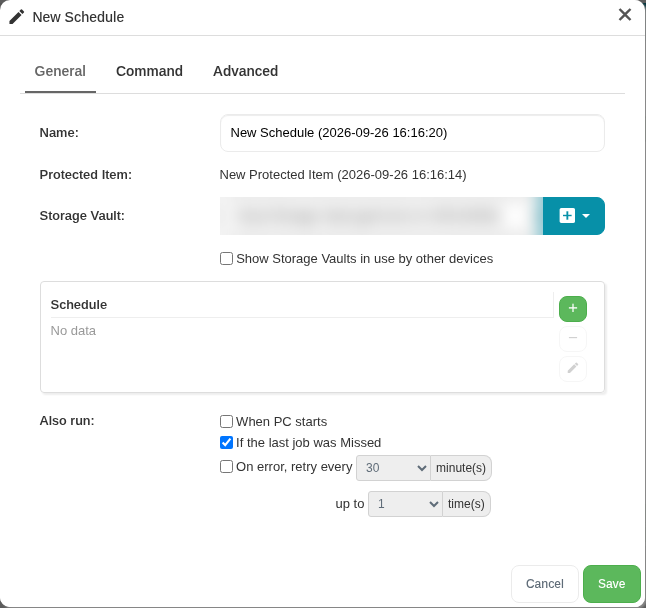
- On the General tab, give the schedule a name you'll recognize, for example "Nightly to cloud", and pick the Storage Vault it should back up to.
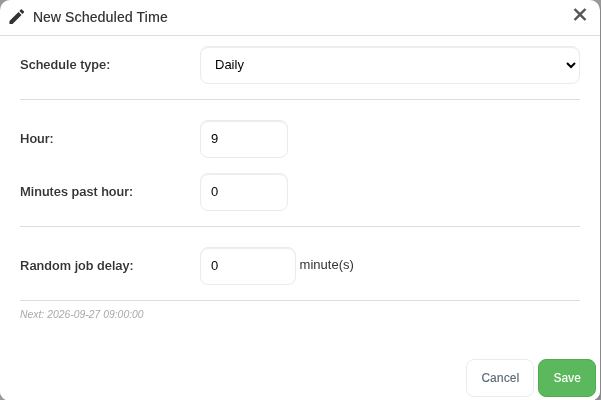
- Under Schedule, click + (Add time). In New Scheduled Time, pick a Schedule type: and fill in its fields (the types are explained below), then click Save. The dialog shows the Next: run time so you can check it. You can add several times to one schedule, for example 12:00 and 18:00.
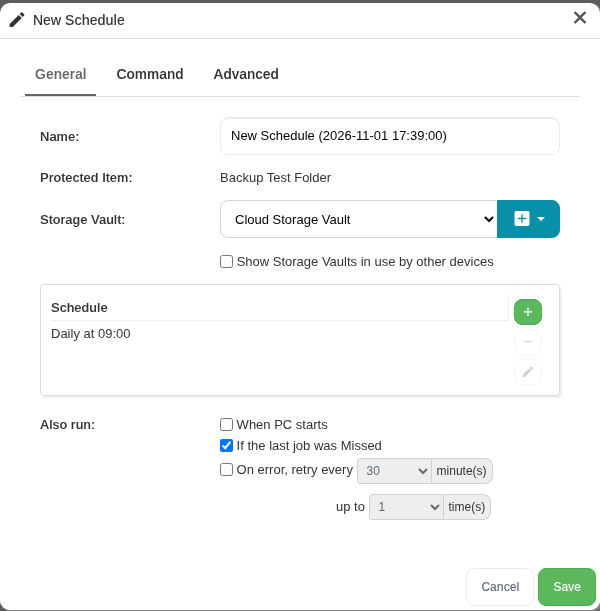
- Under Also run:, tick the event options you want (see Also run options).
- Check the Advanced tab if you need a time limit, a speed limit or one of the other options below.
- Click Save in the schedule dialog, then Save in the Protected Item editor.
To remove a schedule, select it in the list and click − (Delete schedule), then save the Protected Item.
How schedules work
Schedule types
- Hourly: every hour at the Minutes past hour: you choose. You can tick Restrict days and Restrict hours (From: / To:) to run only during working hours, for example.
- Daily: once a day at the Hour: (24-hour clock, 0 to 23) and Minutes past hour: you set.
- Weekly: on the ticked Day of week: boxes at the time you set. You can tick several days.
- Monthly: on the Day of month: at the time you set.
- Yearly: on the Day of month: in each ticked Month of year:, at the time you set. Tick one month for an annual backup, or several months (for example Jan, Apr, Jul, Oct) for a quarterly one. The same day and time is used for every ticked month.
- Once only: a single run on the Date (once only): and time you set.
- Periodic: every Frequency: minutes. Use Offset: to shift the start so that many devices on the same frequency don't all start together.
Random job delay: adds a random wait of up to the number of minutes you set (maximum 300) before the job starts. Use it when many devices at one client share a schedule, so they don't all upload at once.
Also run options
- When PC starts: runs a backup right after the device boots. A start counts when the backup service starts and the system has been up for less than 10 minutes. Whether waking from sleep also counts has changed between versions, so for laptops don't rely on this option alone.
- If the last job was Missed: runs a backup as soon as the device comes online if the last job for this Protected Item and Storage Vault was missed. It's ticked by default in new schedules and is the best way to catch up laptops that are often off or asleep at the scheduled time.
- On error, retry every [30 to 180] minute(s) up to [1 to 5] time(s): reruns a job that ended in error. Useful for devices on unreliable connections.
Tip: avoid backups that trigger twice
On older versions of the backup app, ticking both When PC starts and If the last job was Missed could start two identical jobs within a second of each other after a reboot. The second job then shows as Skipped (or waits) because the first one is still using the Storage Vault. Current versions start only one job when both options apply at the same boot.
If you still see duplicate jobs at startup:
- Update the backup app on the device. See Manage devices from the Devices page.
- If it still happens, tick only one of the two options. For laptops, keep If the last job was Missed. For desktops and servers that are rarely rebooted, When PC starts is fine.
- Also check that the same Protected Item doesn't have two schedules to the same Storage Vault, for example one added by hand and one from a policy default.
Advanced options
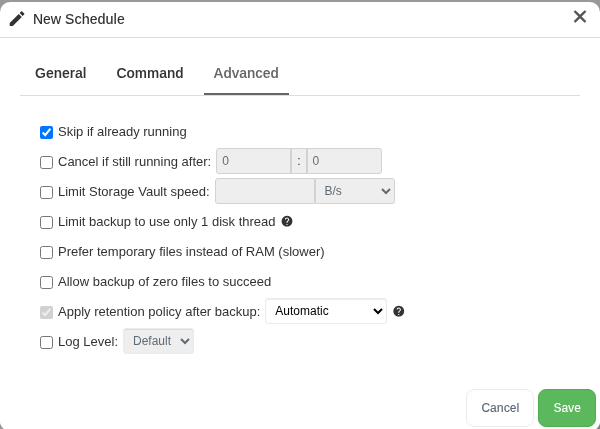
These are on the schedule's Advanced tab:
- Skip if already running: if a job for the same Protected Item and Storage Vault is still running, the new one is skipped and logged as Skipped instead of queuing.
- Cancel if still running after: a time limit (hours:minutes). A job that runs longer is cancelled.
- Limit Storage Vault speed: caps the combined upload and download speed of the job, for example 10 Mbit, so backups don't saturate a small office connection. On Magnus Box 26.10.0 or later, the limit can follow a schedule, for example a low limit during business hours and full speed overnight. That helps a large first backup finish without slowing the office down. A new limit applies right away when a window starts or ends, even to a job that's already running.
- Limit backup to use only 1 disk thread: reduces the load on slow or busy disks, at the cost of a slower backup.
- Prefer temporary files instead of RAM (slower): for devices that run short of memory during backups. See Out of memory.
- Allow backup of zero files to succeed: by default a job that backs up no files ends in Error, which catches wrong or moved paths. Tick this only if an empty backup is expected. See The backup job did not include any files.
- Apply retention policy after backup: Automatic, Run immediately, Run more often or Run less often. See Retention policies and retention passes.
- Log Level: Default or Debug. Use Debug only when support asks for it.
The Command tab runs commands before or after the scheduled job, for example to shut the device down afterwards. Schedule commands run first and last, around the Protected Item's and Storage Vault's own commands. See Commands executed before or after a backup don't run.
Verify it worked
- In the New Scheduled Time dialog, Next: shows the next run time. Check it matches what the client expects.
- After the first scheduled run, go to Management Console > Job logs (or the user's Job Logs tab) and check for a Backup job with status Success at that time.
- On Management Console > Recent activity, a Protected Item without a schedule shows No Schedule. Use this to spot clients you forgot to schedule.
Troubleshooting
- Jobs show as Missed: the device was off, asleep or offline at the scheduled time. Tick If the last job was Missed, or move the time to when the device is on. See Backup jobs missed or running unexpectedly.
- Jobs show as Skipped: another job for the same Protected Item and vault was still running and Skip if already running is on. Space the schedules out, or check for a stuck job in Jobs left in Running state, Cancel a running job.
- Two jobs start at once after a reboot: see Tip: avoid backups that trigger twice.
Still stuck? Email support@magnusbox.com with the username, device name and the job's date and time.