
Job logs, recent activity and job statuses explained
In short
Every backup, restore and other job a device runs is recorded with a status. In the Magnus Box Web Portal, Job logs lists individual jobs with their details and reports, and Recent activity gives you a per-Protected Item overview so you can spot problems across all your clients at a glance. This article explains both pages and what each job status means.
How it works
Home dashboard
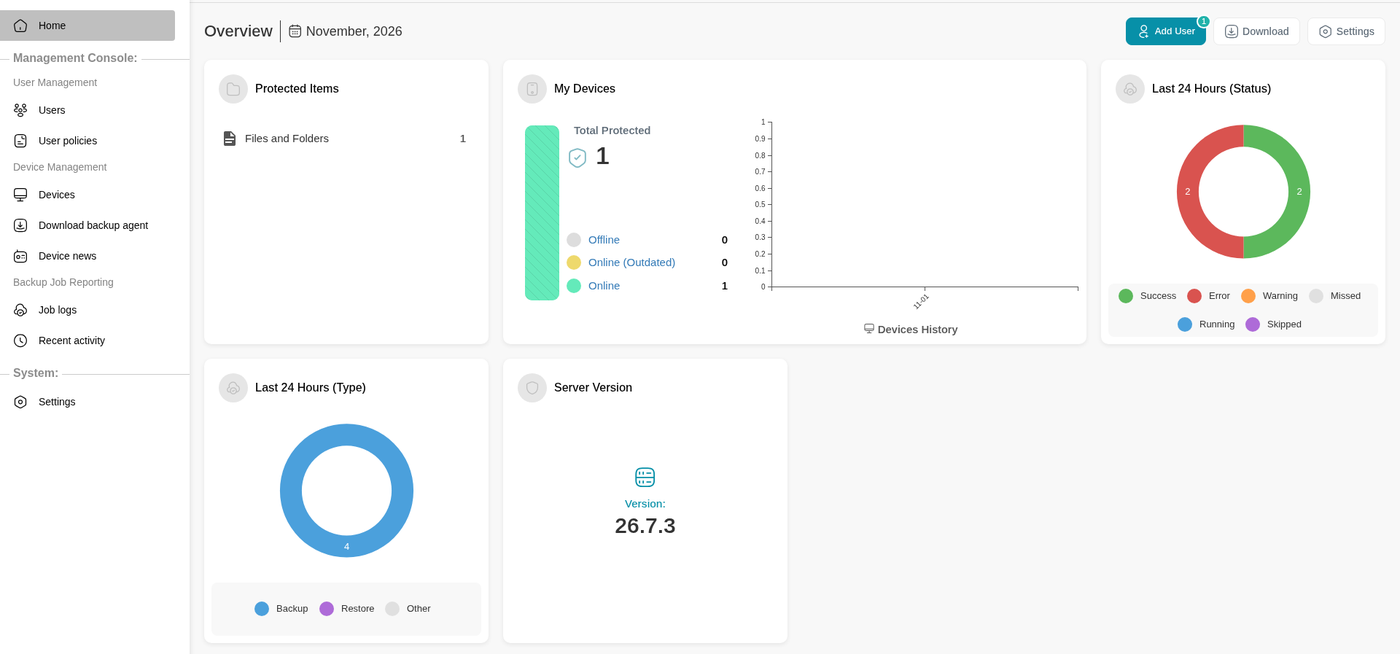
The Home page summarizes the Last 24 Hours of jobs by status (Success, Error, Warning, Missed, Running, Skipped) and by type (Backup, Restore, Other), and shows how many devices are Online, Online (Outdated) or Offline. Start your day here.
Job logs
- Go to Management Console > Job logs. For a single client, open the user and select their Job Logs tab.
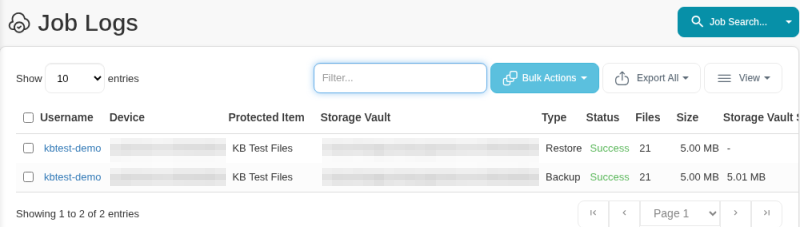
- Click Job Search... and pick a search: All jobs (unfiltered), Recent- and incomplete- jobs, Incomplete/running jobs, or Custom search query... to filter by user, status, type or date. You can save custom searches for reuse.

- Each row shows the Username, Device, Protected Item, Storage Vault, Type, Status, Files, Size, Storage Vault Size, Uploaded, Downloaded, Started, Ended and Duration.
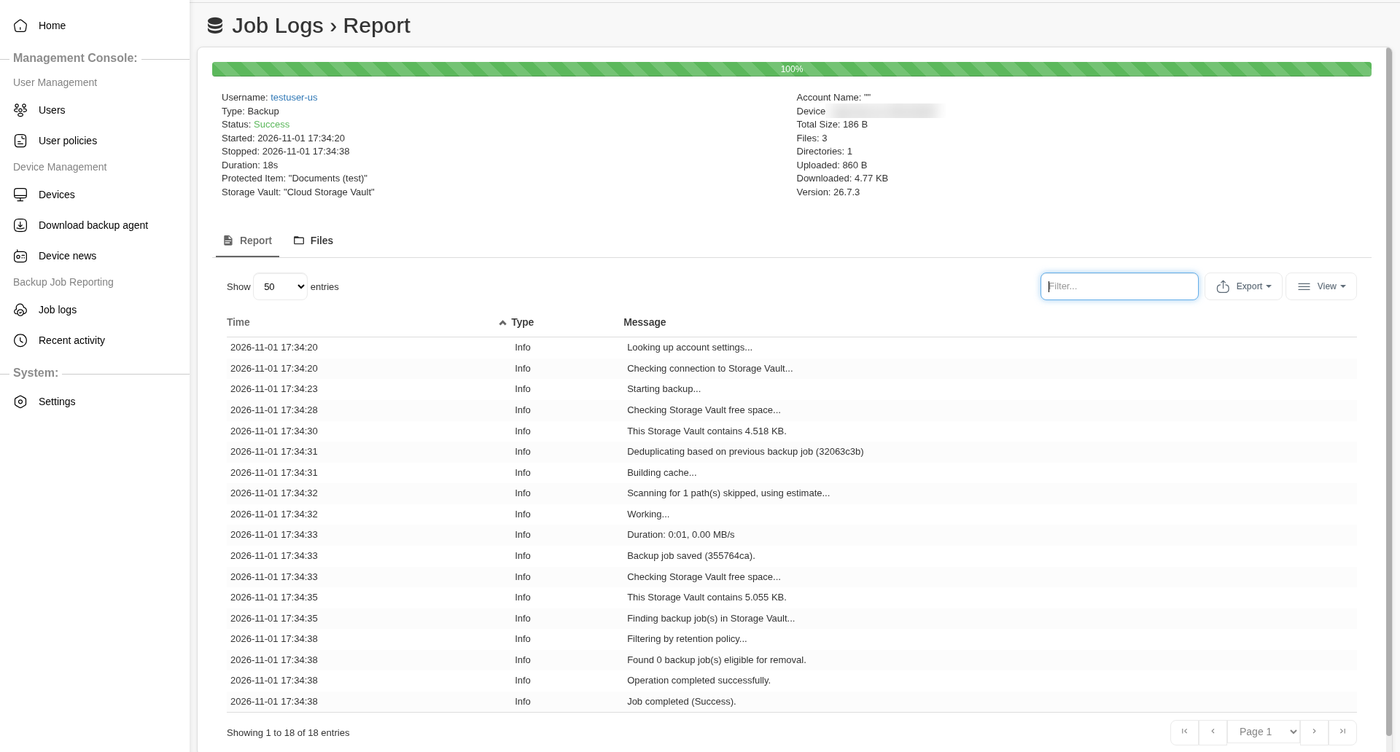
- Click Report on a row to open the job's log. It lists every message the device recorded, including warnings and errors with the files or settings involved. This is what support will ask for.
Recent activity
Management Console > Recent activity lists each Protected Item with its Username, Device, Protected Item ID, Total Jobs and a row of recent job results under Activity. It's the quickest way to see patterns, such as a laptop that misses every other night. Tick Show deleted Protected Items to include deleted ones, and Auto Refresh to keep the page current. A Protected Item with no schedule shows No Schedule.
On the device itself, the backup app's Job Logs list shows the same jobs with their status.

You can also get this overview by email. See Recent activity digest for all your clients.
Job statuses
| Status | What it means | What to do |
|---|---|---|
| Success | The job finished without problems. | Nothing. |
| Running | The last update from the device says the job is still running. | If it's been running far longer than usual, see Jobs left in Running state, Cancel a running job. |
| Running (revived) | The job was thought abandoned, then the device reported it as running again. | Usually nothing. Check it finishes. |
| Warning | The job finished, but something may not have gone as expected, for example some files couldn't be read. | Open the Report and fix the cause. Repeated warnings mean data may be missing from the backup. |
| Error | The job hit an error and didn't fully complete. | Open the Report, find the error and search this Help Center for the message. |
| Quota Exceeded | The backup went over the user's all-Protected-Items quota or the Storage Vault quota. | Raise the quota or reduce the data. See Set storage and usage quotas. |
| Missed | A scheduled job didn't start at its time, usually because the device was off, asleep or offline. | See Backup jobs missed or running unexpectedly. |
| Cancelled | Someone cancelled the job, the device shut down, or the schedule's time limit was reached. | If it keeps happening, check the Cancel if still running after limit. See Backup schedules explained. |
| Skipped | A job for the same Protected Item and vault was already running, and Skip if already running is on. | Space out schedules, or look for a stuck job. |
| Abandoned | The job stopped unexpectedly (for example the app crashed or lost its connection), or an admin marked it abandoned. | Run the backup again and check the device. See Jobs left in Running state, Cancel a running job. |
What this means for you
- Treat Warning and Missed as problems, not noise. A string of warnings or missed jobs often means data isn't being protected.
- Don't wait to look. Send failures to yourself with email reports, webhooks or your PSA. See Monitoring and PSA/RMM integrations overview.
- Keep the report. When you contact support@magnusbox.com, include the username, device, job date and time, and the job report.
Troubleshooting
"The backup job did not include any files"
The job ran but found nothing to back up. What to check depends on the Protected Item type.
File and Folder:
- Open the Protected Item and check that it lists at least one path.
- Check that each path exists on the device. Paths filled in automatically (for example a Documents folder that was redirected or never created) sometimes point to folders that aren't there.
- Check your include and exclude filters. An exclude filter can match everything.
- If the paths and filters are right, the cause is usually permissions or a snapshot (VSS) issue. See Error "Access is denied" and Troubleshooting VSS.
Disk Image:
- Open the Protected Item and check that at least one disk or partition is selected.
- Check whether the disk IDs changed since you set it up. Replacing a disk, changing storage drivers, or other big hardware or software changes can do this. If they changed, select the disks again and save.
Still stuck? Email support@magnusbox.com with the username, device name, and the job's date and time.