
Restore options explained
In short
Every restore answers three questions: where you run it from (the Web Portal, the backup app on the device, or another device on the same account), which backup (the Storage Vault, Protected Item and snapshot), and how the data comes back (the restore method). The methods on offer depend on the Protected Item type. This article gives you the map, and links to the step-by-step articles for each case.
How it works
Where you can start a restore
- From the Magnus Box Web Portal: go to Management Console > Users > [user] > Devices, click Actions... on an online device and choose Restore.... The restore runs on that device, just as if you'd started it there. Use this when you can't get to the machine, and for Linux devices, where the app runs as a background service.
- In the browser, with no app needed (Magnus Box 26.10.0 or later): on the user's page in the Web Portal, click Restore... on a Protected Item in the Protected Items table. You get the selected items, or a whole snapshot, as a download in your browser. To do this for a client, the client must turn on Allow administrator to restore data. See Restore from your browser.
- From the Magnus Box Application on the device: click Restore. Use this on site or through your remote access tool, and when the client has turned off Allow administrator to view file names.
- From a different device: any device signed in to the same user account can restore another device's backups, for example onto a replacement laptop. See Restore a Protected Item from a different device.
- From a recovery environment: boot the machine from recovery media to put a Disk Image back onto its own disks. See Recover a whole machine (bare-metal restore).
- By mail: for very large restores or slow connections, we can load the data onto an encrypted drive and ship it. See Restore Via Mail.
Choosing the backup
The restore wizard always starts the same way: pick the Storage Vault, then expand the device and Protected Item. Each backup is a snapshot named by date and time, and Latest is the most recent. Use Search to find a file when you don't know which snapshot has it. Which snapshots exist depends on the retention rules. See Retention policies and retention passes and How to view older snapshots.
Restore methods by backup type
| Protected Item type | Restore methods | Step by step |
|---|---|---|
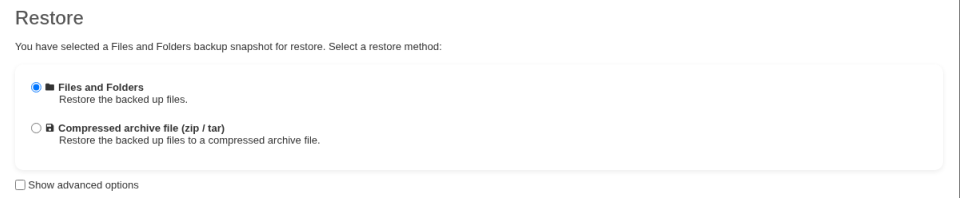
| Files and Folders | Files and Folders (to the original paths or a new folder); compressed archive (zip, tar, tar.gz, tar.zst or sqfs) | Restore files and folders |
| Disk Image | Disk image files (VMDK, or VHDX for Hyper-V); back to physical disks from a recovery environment; directly into a new Hyper-V or VMware VM; granular restore of single files | Bare-metal restore, Restore as a VM, Granular restore |
| Microsoft Hyper-V | Directly into Hyper-V on the local machine; the VM's files; granular restore; converted to VMDK for VMware; directly into VMware or Proxmox | Microsoft Hyper-V, Restore as a VM |
| VMware vSphere | The VM's files (VMX and VMDK) to import in vSphere; directly into Hyper-V or Proxmox; granular restore | VMware vSphere, Restore as a VM |
| Proxmox | Directly into Proxmox; directly into Hyper-V or VMware; disk image files (IMG); granular restore | Proxmox VE |
| Microsoft Office 365 | Back to the original or another mailbox or site; to files on a device; as a ZIP or TAR download in the browser for hosted Microsoft 365 backups (26.10.0 or later) | Office 365 - Restore |
| Microsoft SQL Server, MySQL, MongoDB | SQL Server: back to the original instance (with or without recovery), or the backup files to a folder. MongoDB: .bson files to import, or streamed straight back into the server. MySQL: see the article for what to restore |
Microsoft SQL Server, MySQL, MongoDB |
| Windows Server System State | A .vhd file that you apply with the Windows wbadmin tool |
Windows Server System State |
Options you'll see for most types
Tick Show advanced options in the restore method step to see more methods:
- Simulate restore only: downloads and rebuilds the data but doesn't save it. It proves the backup can be restored without touching the device's disk. See Run a test restore.
- Compressed archive: writes the restored data into one archive file instead of separate files.
- Remote and cloud destinations (Magnus Box 26.10.0 or later): a restore can write straight to a remote or cloud storage location instead of only to a local disk on the device.
- Mount as a read-only folder (Linux, 26.10.0 or later): on Linux devices, including inside WSL2, a Files and Folders snapshot can be opened as a read-only folder from the app's Restore dialog. Files download only when you open them. Open or unmount active mounts from the Mounted snapshots dialog.
For file restores you also choose Overwrite existing files: and a few advanced options, explained in Restore files and folders.
What this means for you
- Restore to a new folder first. Overwriting the client's live files can't be undone. Restoring side by side lets the client check before anything is replaced. From 26.10.0, selected items land directly in the folder you choose, without the full original folder path being recreated inside it.
- Image backups are for whole machines. File backups are for quick file restores. Granular restore works, but it's slower than restoring from a Files and Folders item. For important servers, protect both. See Best Practices.
- Plan the destination for VM and image restores. Restored virtual disks are written at their full size, so check free space on the target host first.
- Test restores regularly. A backup you've never restored is a guess. See Disaster recovery planning and test-restore checklist.